How to use Variables in CoPost
A comprehensive guide to defining and using variables for dynamic social media posts
Karl Fountain·
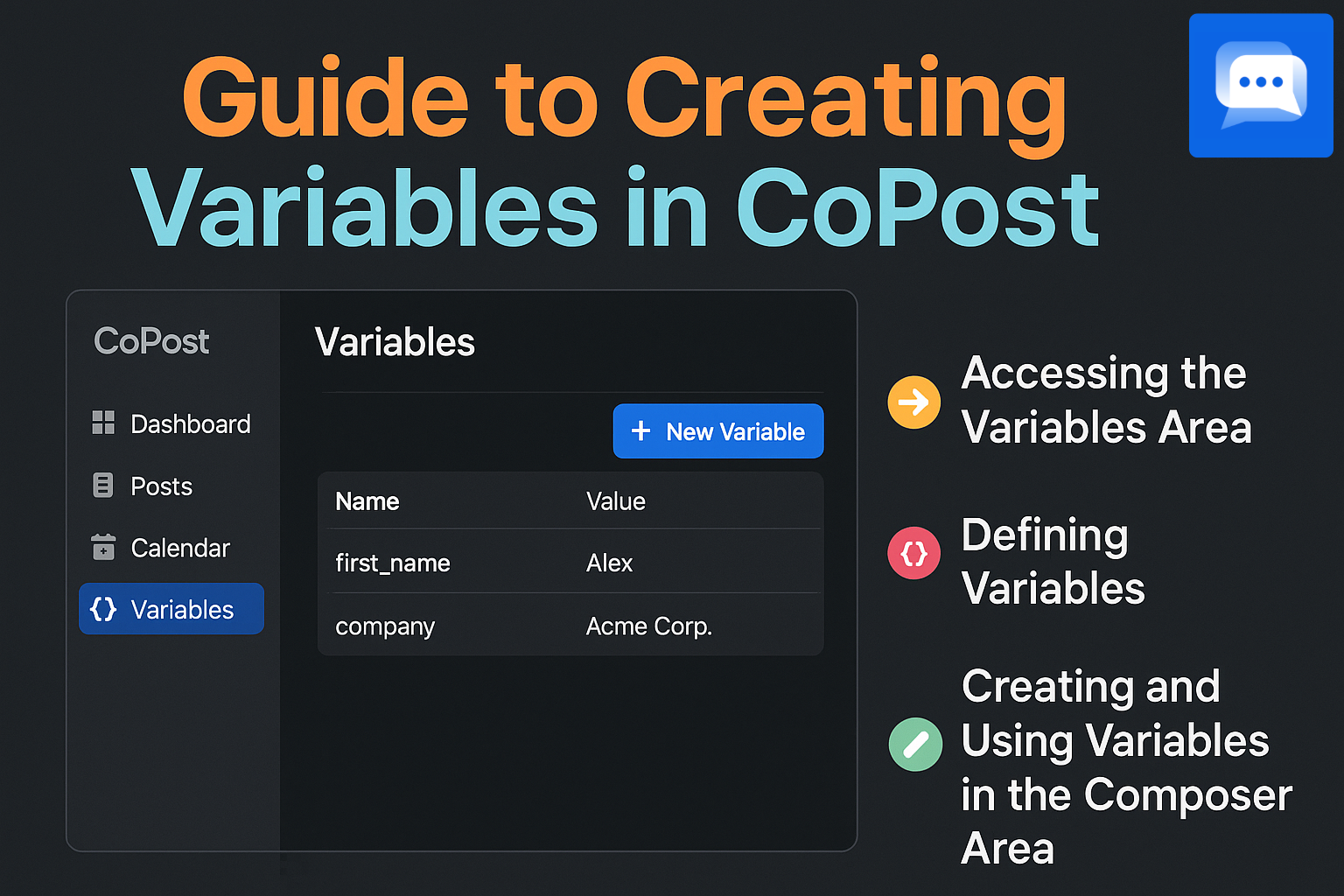
About Variables in CoPost
Variables in CoPost are dynamic placeholders used in creating posts, where the variable is replaced by a set value when the post is published. This feature enhances content customization and efficiency, allowing common terms or phrases to be reused without repetitive entry.
Steps to Create Variables in the Variables Area
Accessing the Variables Area
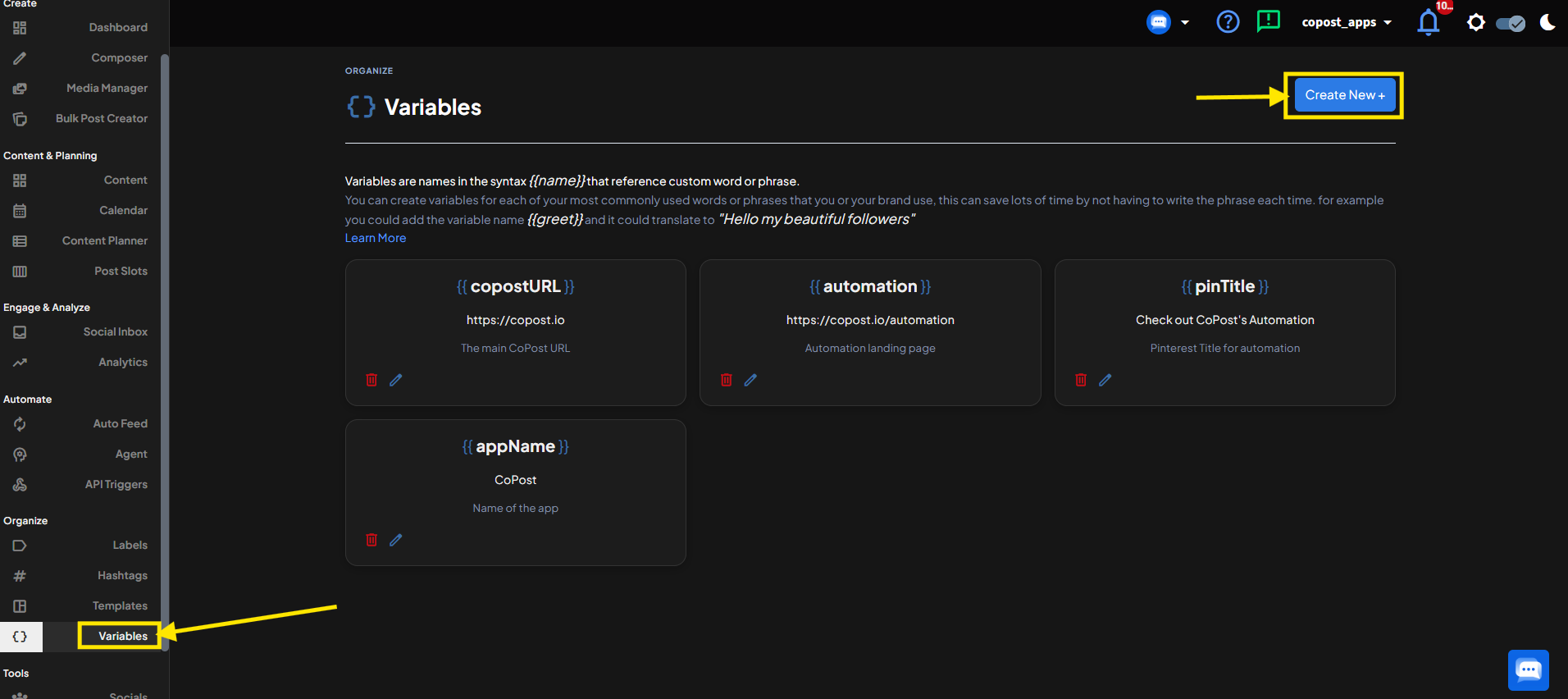
- Begin by navigating to the 'Variables' section from the CoPost dashboard.
- Click on the 'Create New' button to commence creating a new variable.
Defining Variables
- Enter a unique name for your variable and its corresponding value.
- Add a description to identify the variable easily
- Once defined, click Save to store the new variable in your library.
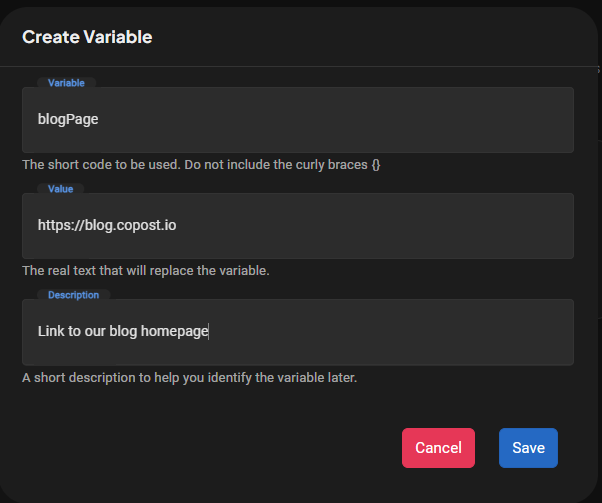
Your variables should be named clearly to ensure ease of use when adding them to your posts.
Creating and Using Variables in the Composer Area
Integrating Variables into Posts
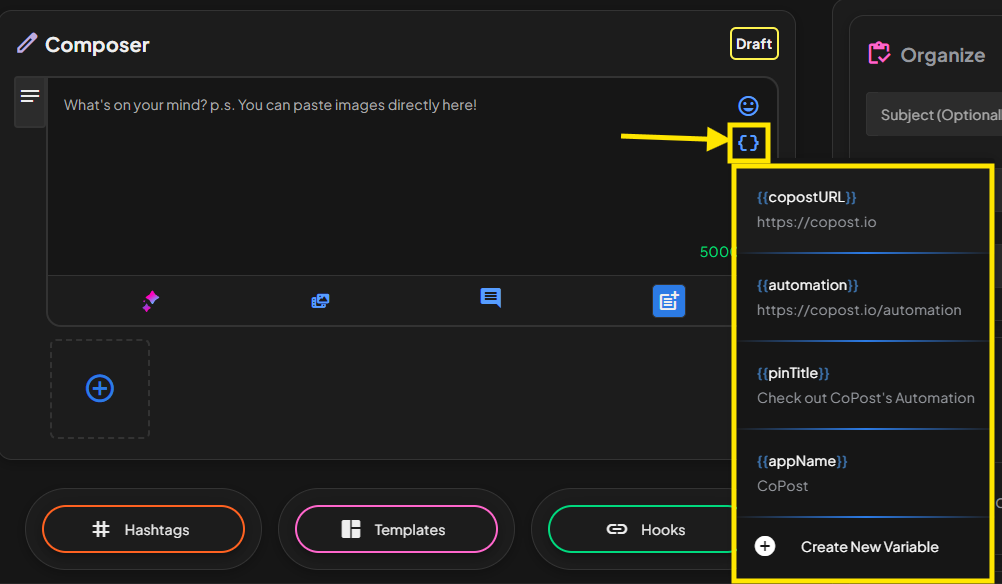
- While composing a new post, locate and click the variable icon in the Composer toolbar.
- Select from your predefined variables to insert them into your content.
- You can also create a new variable from this area
Using Variables with Auto Feed Features
- When setting up an Auto Feed, you can integrate variables to dynamically populate your posts.
- This ensures your content stays fresh and personalized to your audience.
- Make sure to set up your variables from the variables area before using in an Auto Feed automation.
Other Areas that variables can be used
- Variables can be used within these areas:
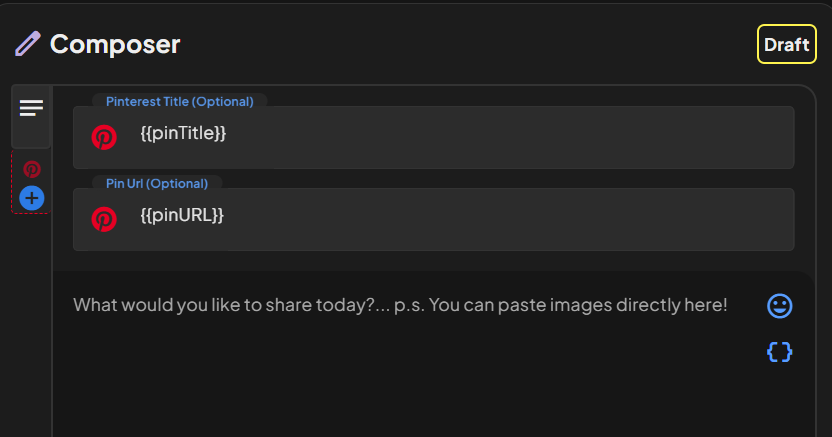
- Pinterest title
- Pinterest Pin URL
- YouTube Video title
- LinkedIn Carousel Title
That's it for this tutorial, thanks for reading.
Please email us at [email protected] if you have any questions.