Custom Thumbnail Guide
Learn how to effectively select and customize thumbnails for your videos on popular platforms.
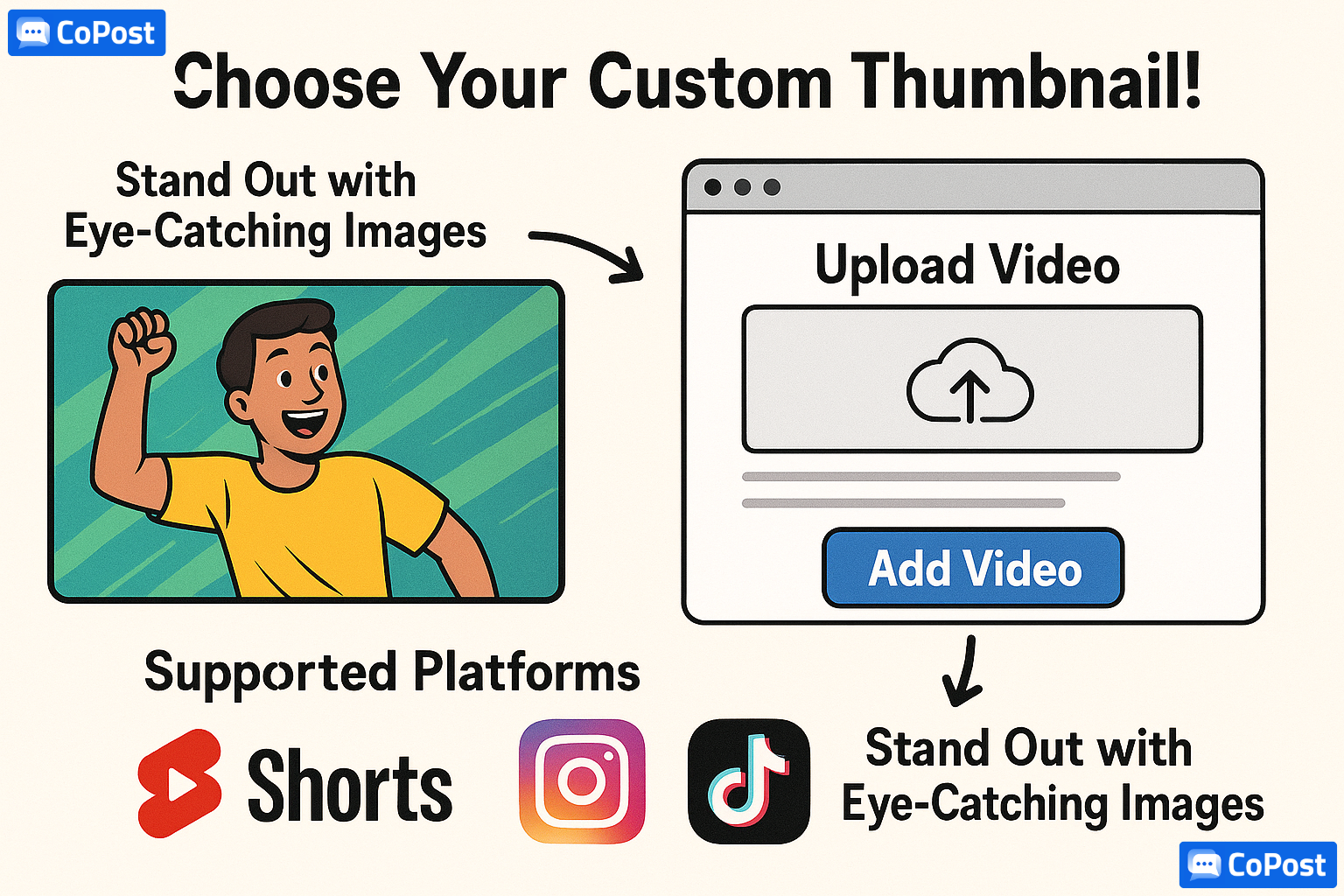
About Custom Thumbnails
CoPost’s custom thumbnail feature allows users to choose a personalized frame from your video as a thumbnail. This eye-catching image helps your content stand out and effectively represent the video’s content. Currently, this feature is available for YouTube Shorts, Instagram, and TikTok.
Steps to Choose a Custom Thumbnail
Adding a Video to a Post
- Navigate to the Composer section on CoPost.
- Click on the 'Add Media' button.
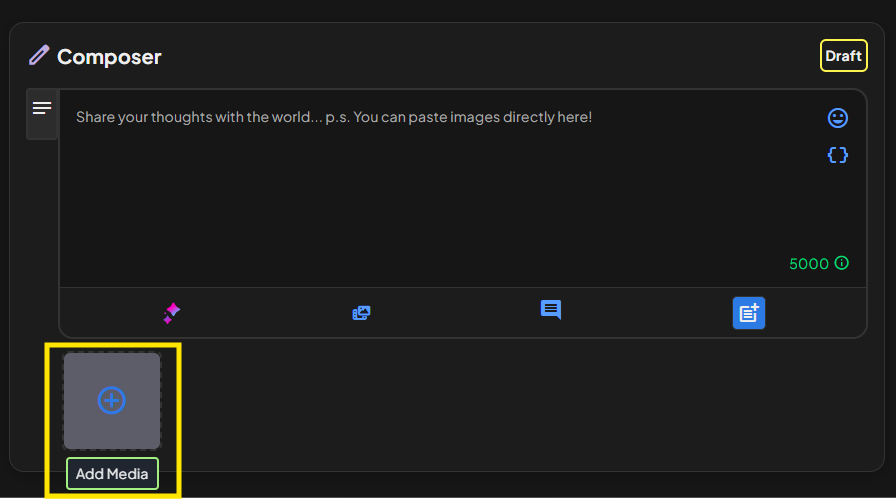
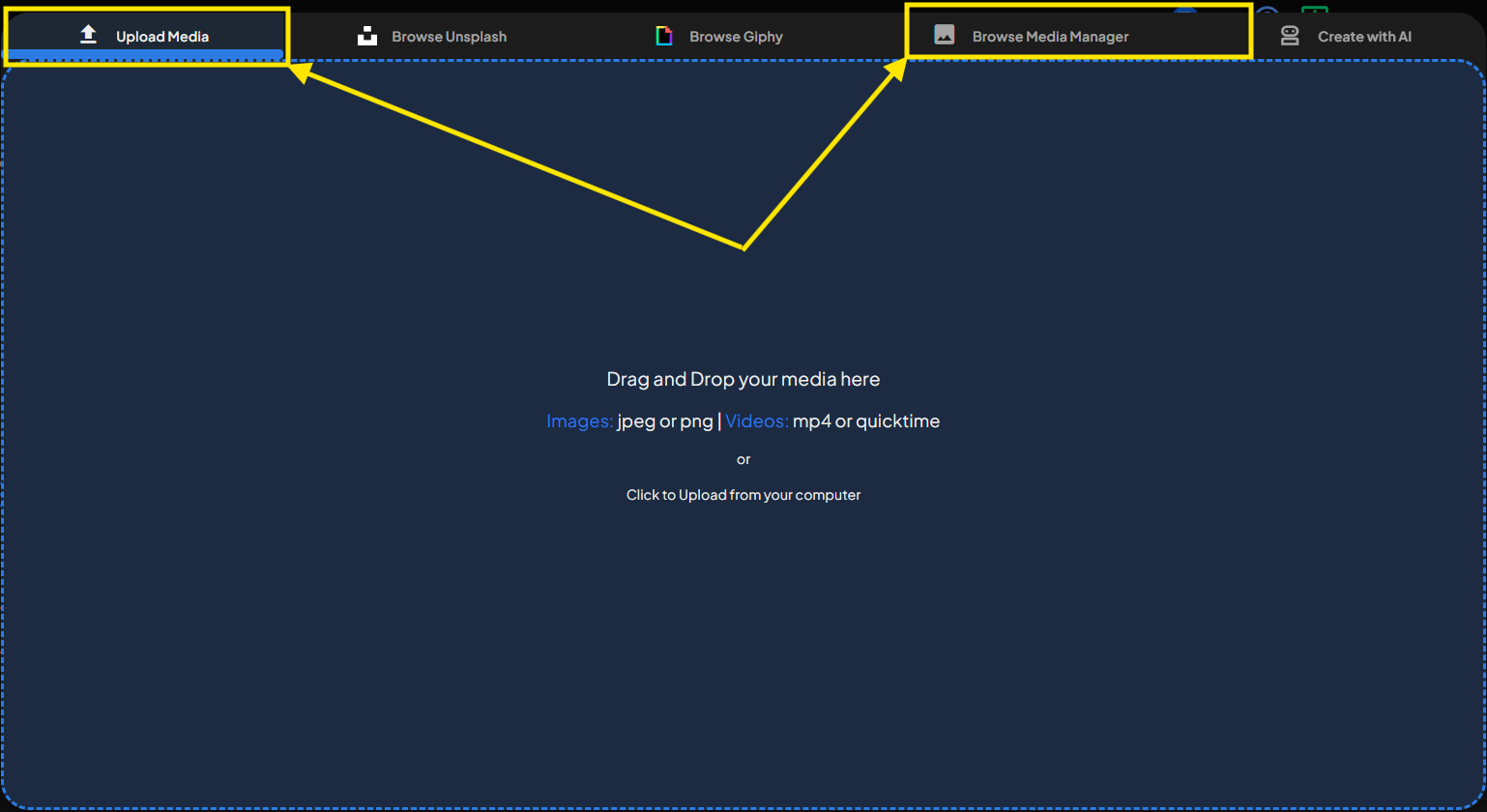
- From the dialog, either upload a new video or choose an existing video from your media library
Changing the Thumbnail
- Once your video is uploaded, click on the 'Edit' icon for your video.
- Select 'Change Thumbnail' from the dropdown menu.
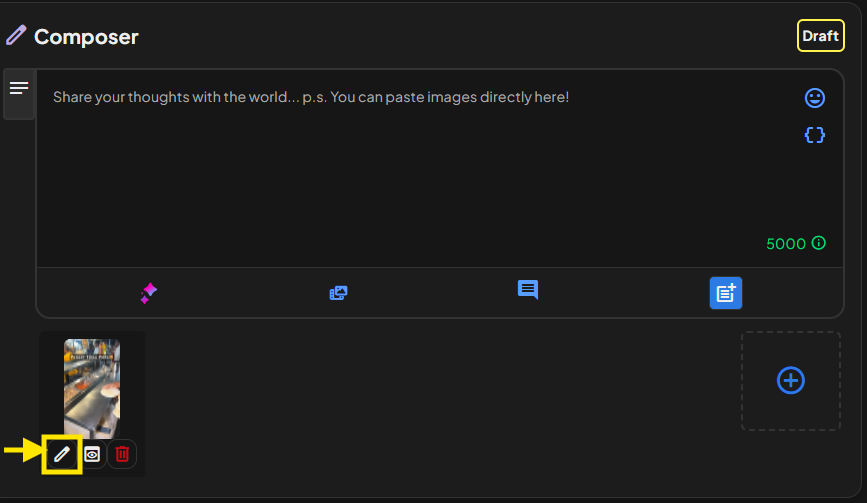
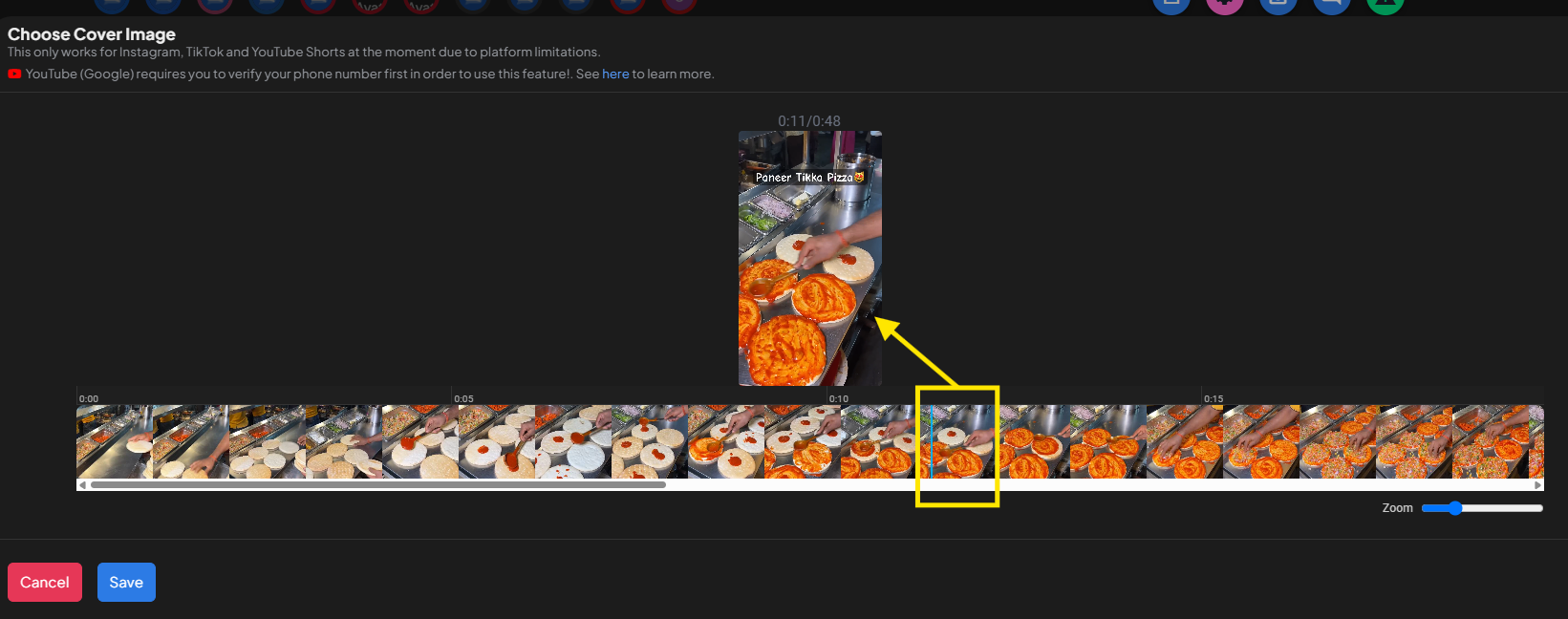
- A preview will appear showing your video’s timeline.
- Use the timeline scrub to slide through your video and select the desired frame.
- Confirm your selection by clicking 'Save' to set the custom thumbnail.
Supported Platforms
This feature only supports:
- YouTube Shorts
- TikTok
Note: For YouTube Shorts, ensure your account is verified. This is a Google requirement, not CoPost. If you need assistance verifying your account, click here.
Verifying Your YouTube Account for Shorts
- Visit the YouTube verification page to verify your account by adding a phone number.
Following these steps ensures that your thumbnails accurately reflect your video's content across these major platforms.