Add media from Google Drive
Connect Google Drive to add media to your library
Google Drive Integration
CoPost lets you connect your Google Drive as an integration, enabling you to select files from your Drive account and use them to create social media posts.
This guide shows you how to connect your Google Drive account directly from Media Manager. You can also connect your account from the Bulk Post Creator area or in Manage > Integrations, on the Cloud Storage tab Once connected, you can use Google Drive to import media anywhere within CoPost.
Let's go
Connecting your account
-
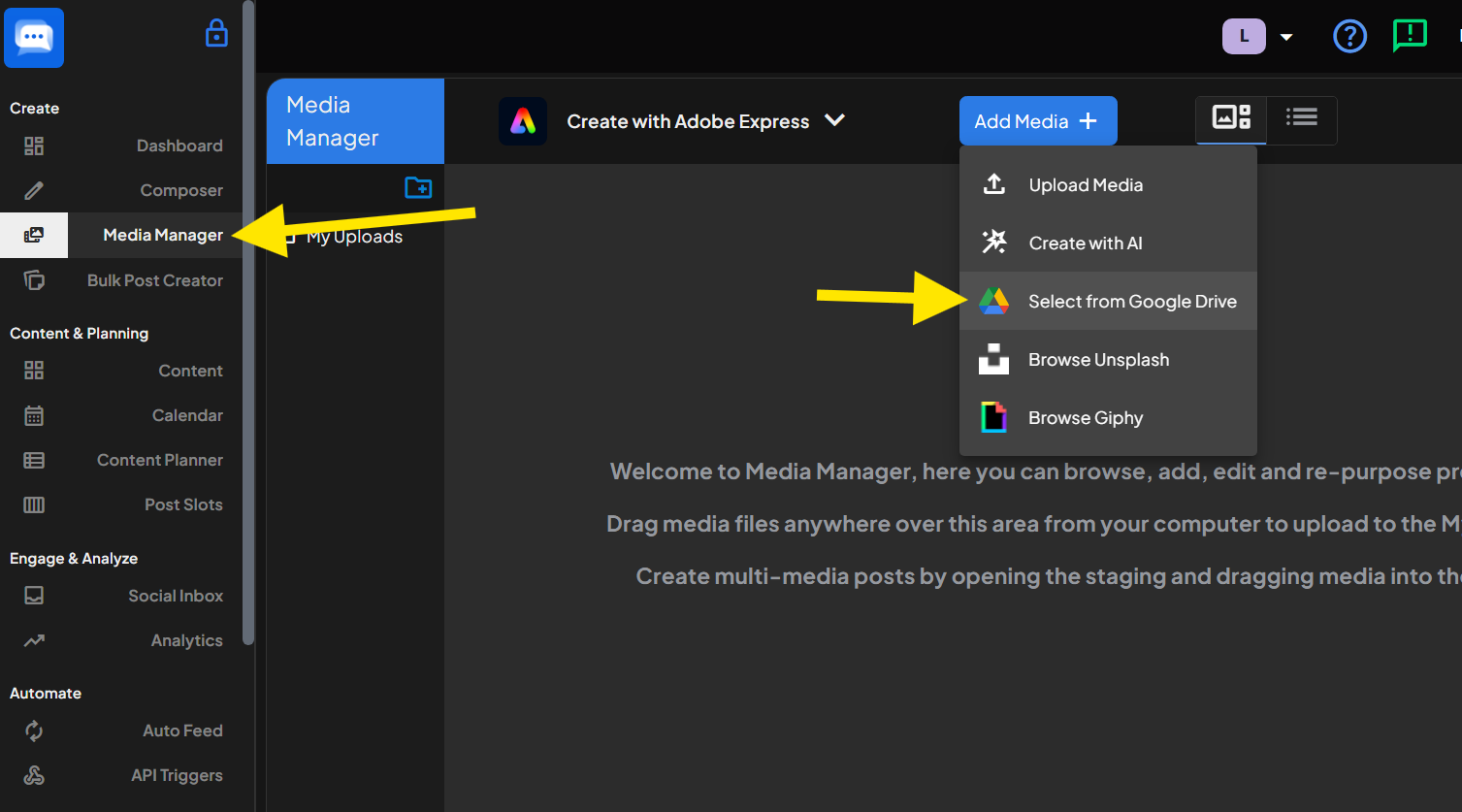
Head over to Organize > Media, click Add Media and then choose Select from Google Drive.
Go to Media Manager -
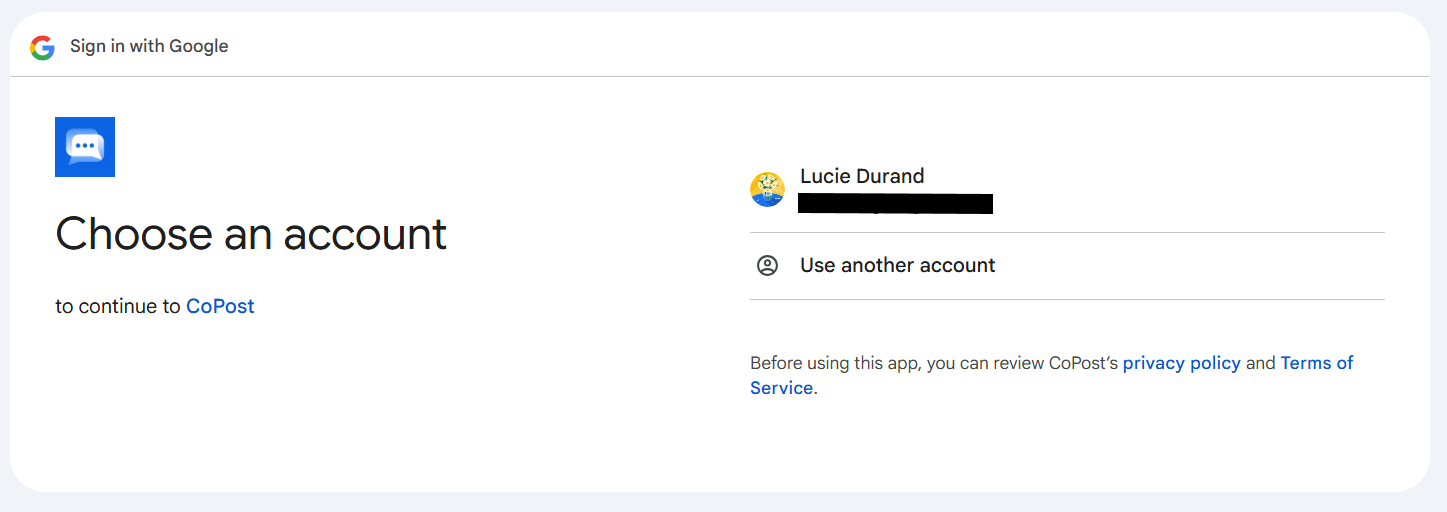
You will be directed to Google where you can select the account to use.
Select accounts -
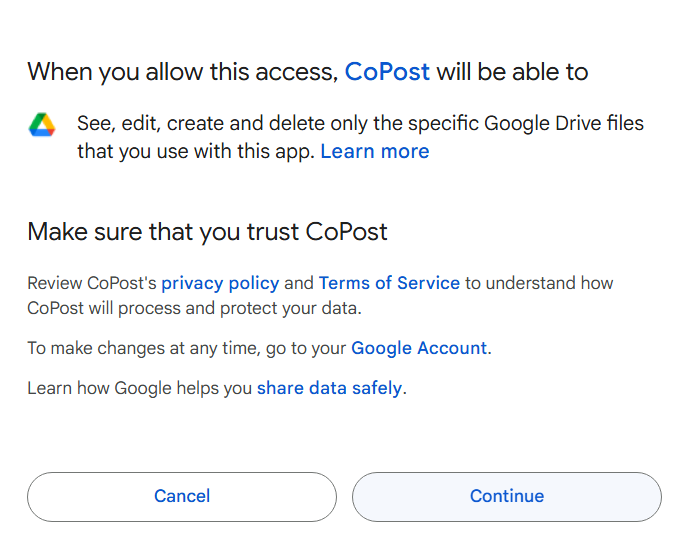
Confirm that you trust us enough to connect your account.
Confirm connection
We request the lowest access to your Drive account, meaning that CoPost can only ever see and import files that you select
- Your Google Drive account is now connected.

Confirm connection
Allowing CoPost to preview thumbnails (Optional)
Because of Google's security measures, we cannot display the thumbnail for any media by default. This means that when you use the Google Drive picker, you can select files but you cannot see the preview, to enable use to show you the preview for each file in your Drive, you will need to enable the Share URL feature for any folder that you wish to use.
You do not need to do this, but it helps visualizing your content when importing media
Enabling the Share URL
-
In Google Drive, right click on the folder you want to use within CoPost, in the share section, click Share
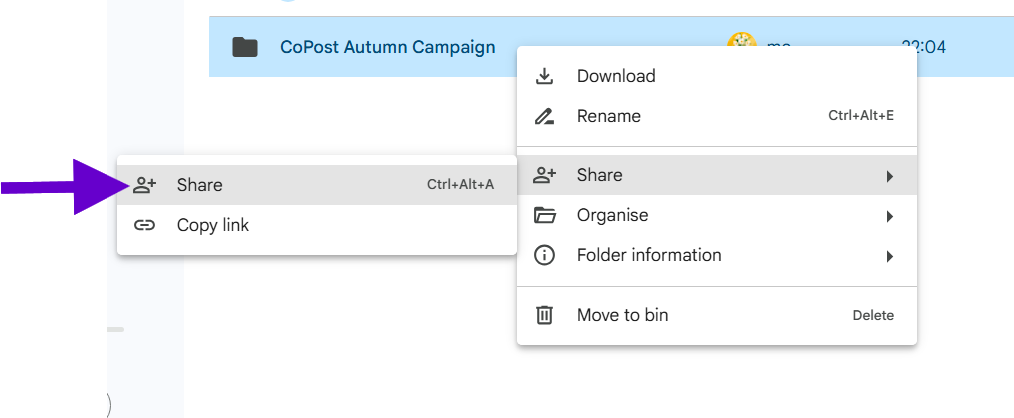
Right Click, Share > Share -
Select Anyone with the link on the left side
-
Select Viewer on the right side
-
Click Done
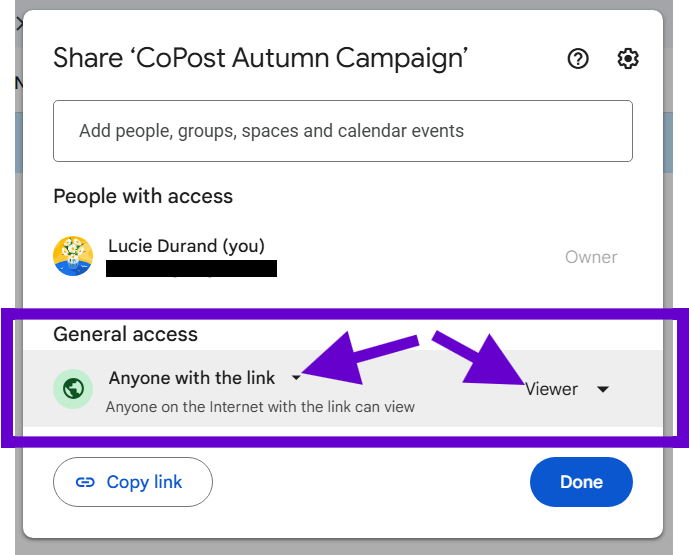
Right Click, Share > Share
Fetching media from Google Drive
Now that your Drive account is connected, you can start importing media.
Creating Folders
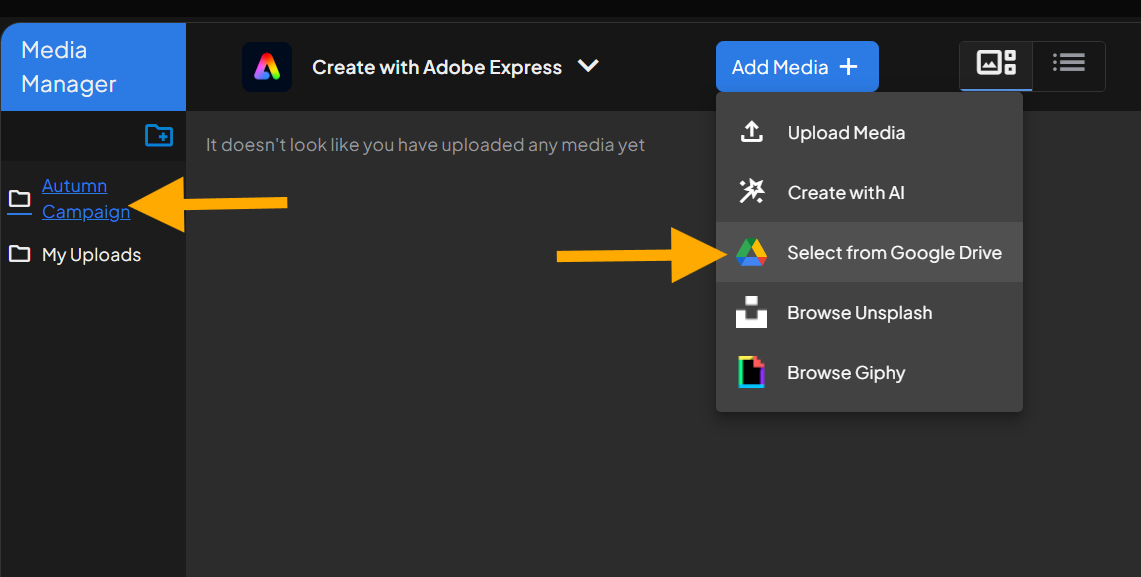
- Create a new folder if you like by clicking on the New Folder icon and giving it a name
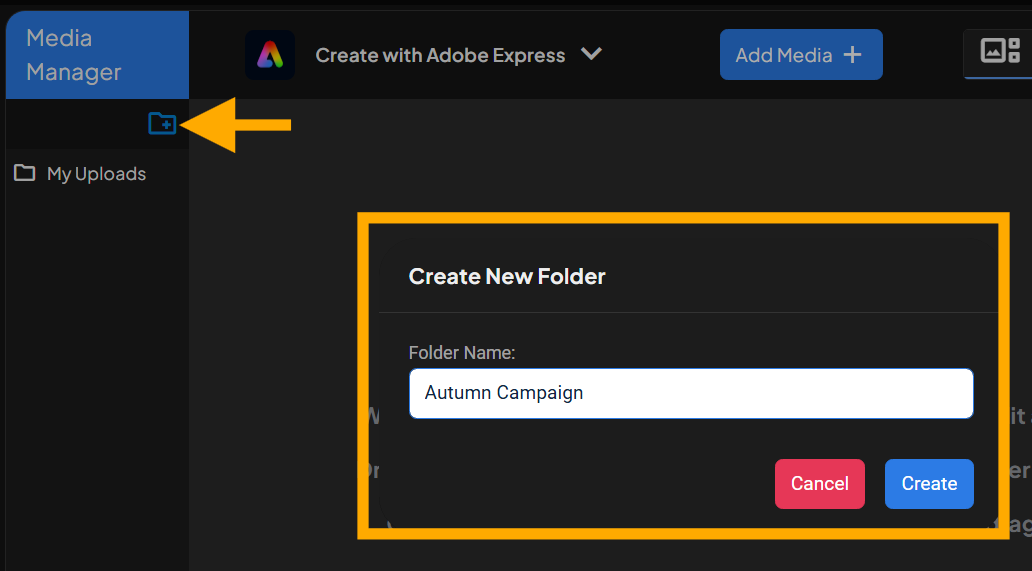
Create new folder
Whichever folder is selected, that is where new media will be imported
Choose Where to Import Media
- Select the folder that you want to import your media into.
- Click Add Media and choose Select from Google Drive
Select the import folder
The Drive Picker
-
Select a single file or multiselect your files within the picker and click Select.
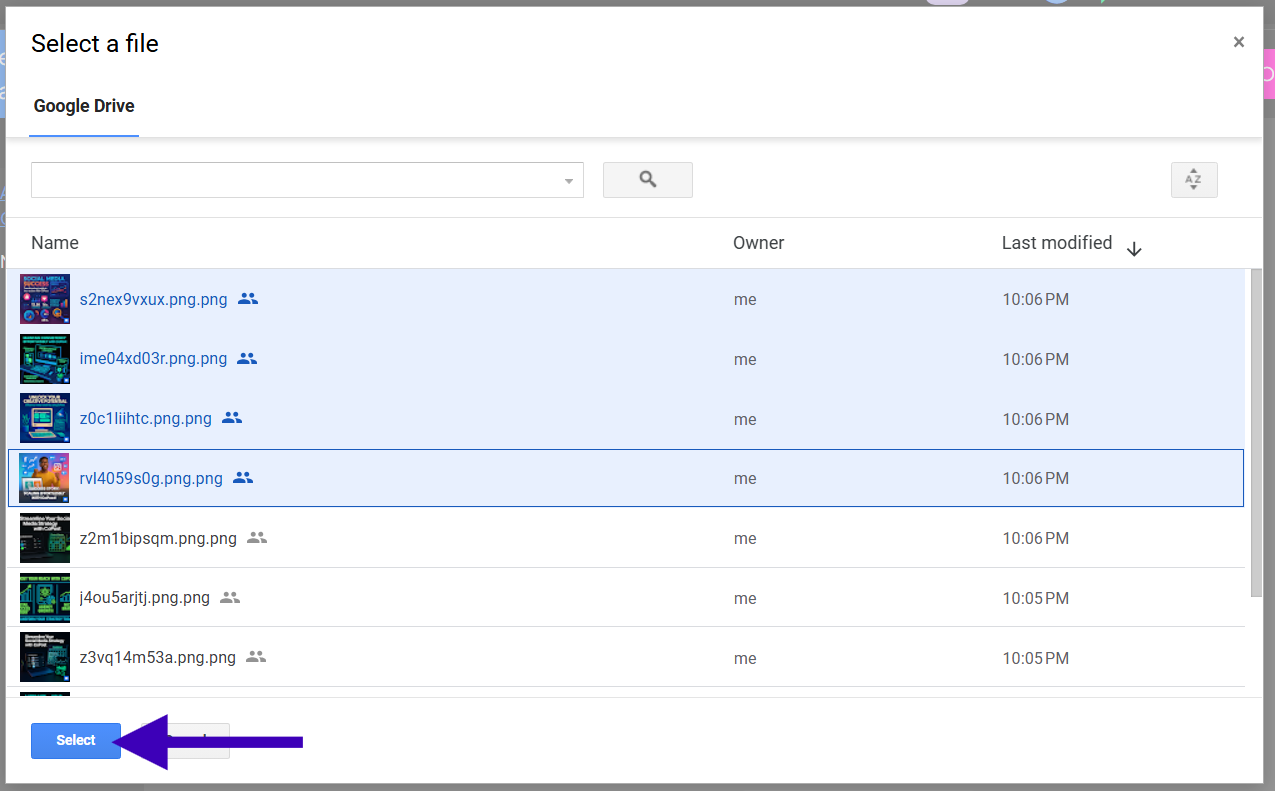
Select files -
Your media will now start to import into CoPost
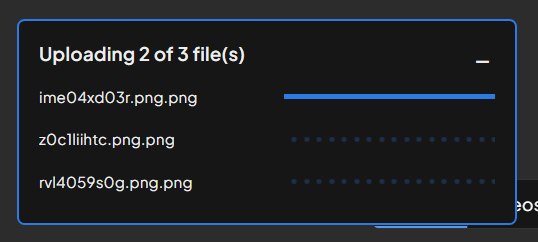
Media will import -
When the import is done, it will be visible in Media Manager and you can start adding your media to your social posts.
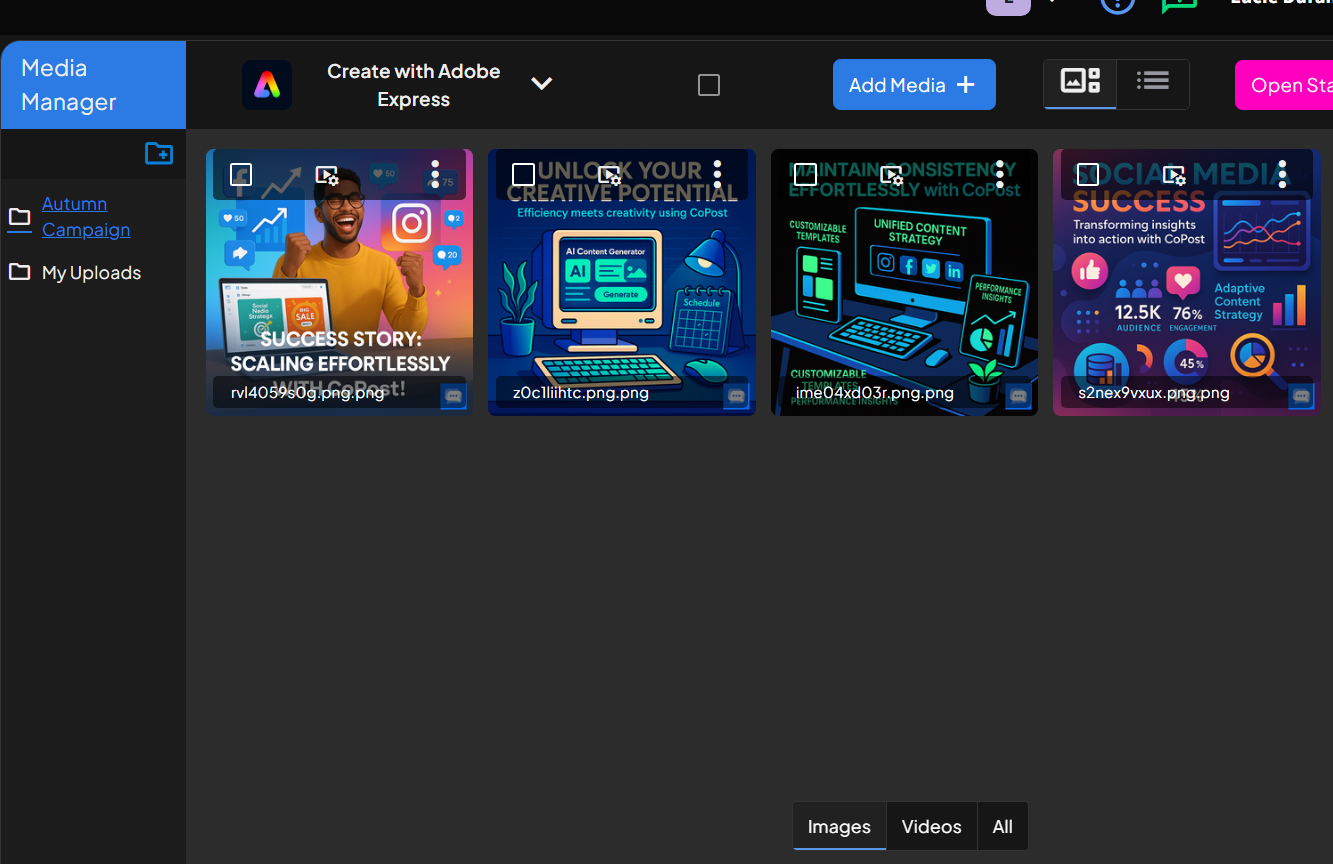
Media will import
Removing Google Drive Integration
To remove your Google Drive integration:
- Go to Manage > Integrations and open the Cloud Storage tab
- Click on the Disconnect button
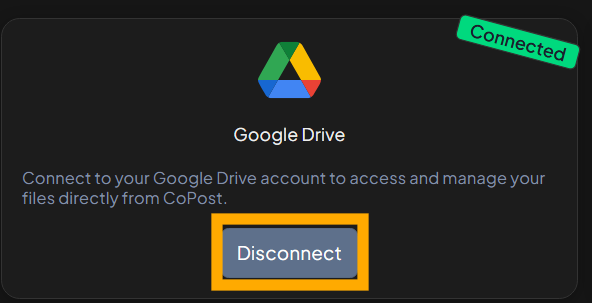
Media will import
This action will remove CoPost's ability to open Drive Picker, but to remove CoPost completely, you may need to remove CoPost from your connected app settings within your Google Drive account
And that's it for this guide. Thank you for reading.
Please feel free to email us at [email protected] if you have any questions.